Guide
Using the platform as a member: from creating an account to paying, step by step. The screens are from the demo site — what you see when you try it is the same.
The member walkthrough
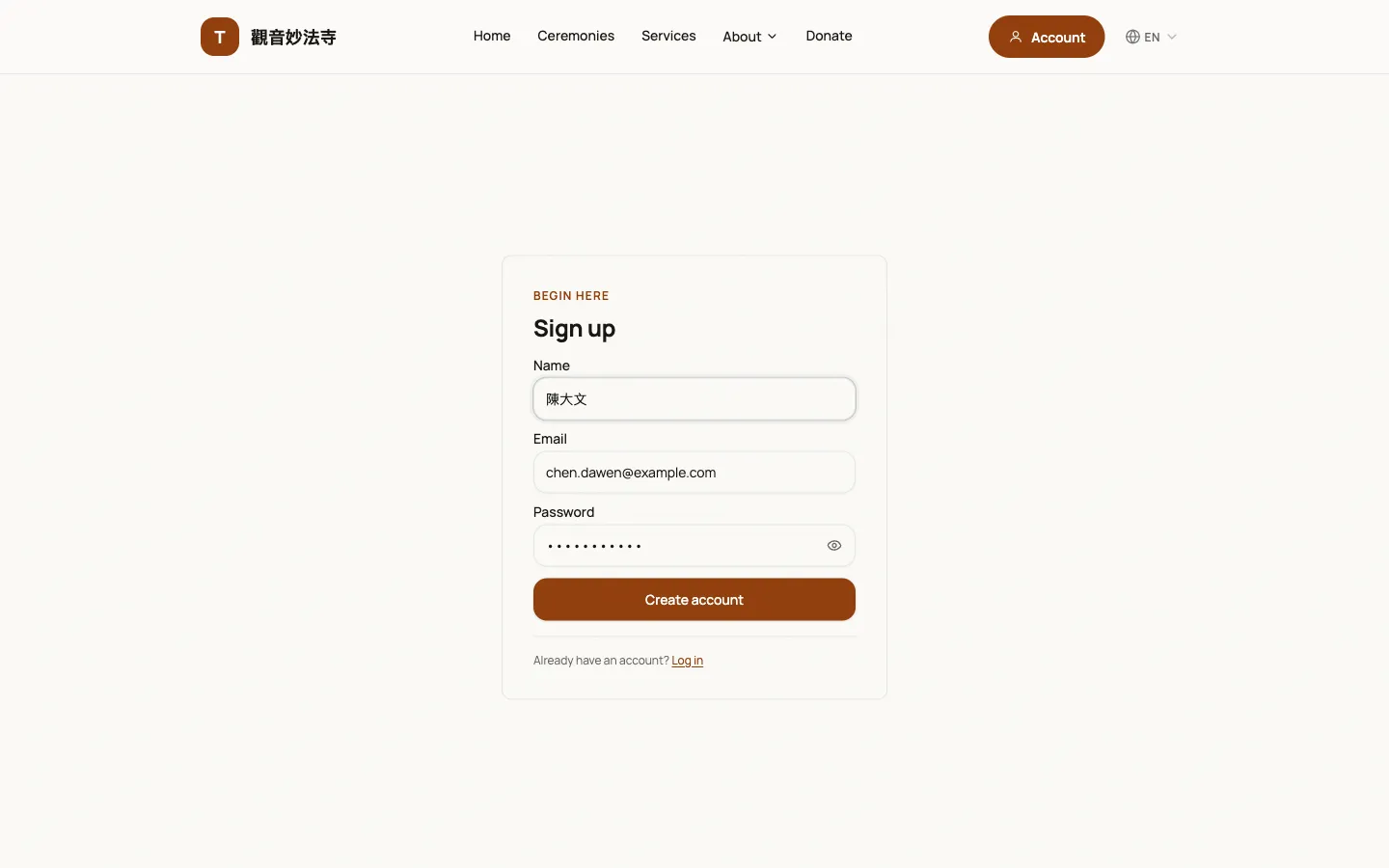
Create an account
In the header, open Account and choose Sign up. Enter your name, email and password. We send a verification email, and it must be verified before you pay.
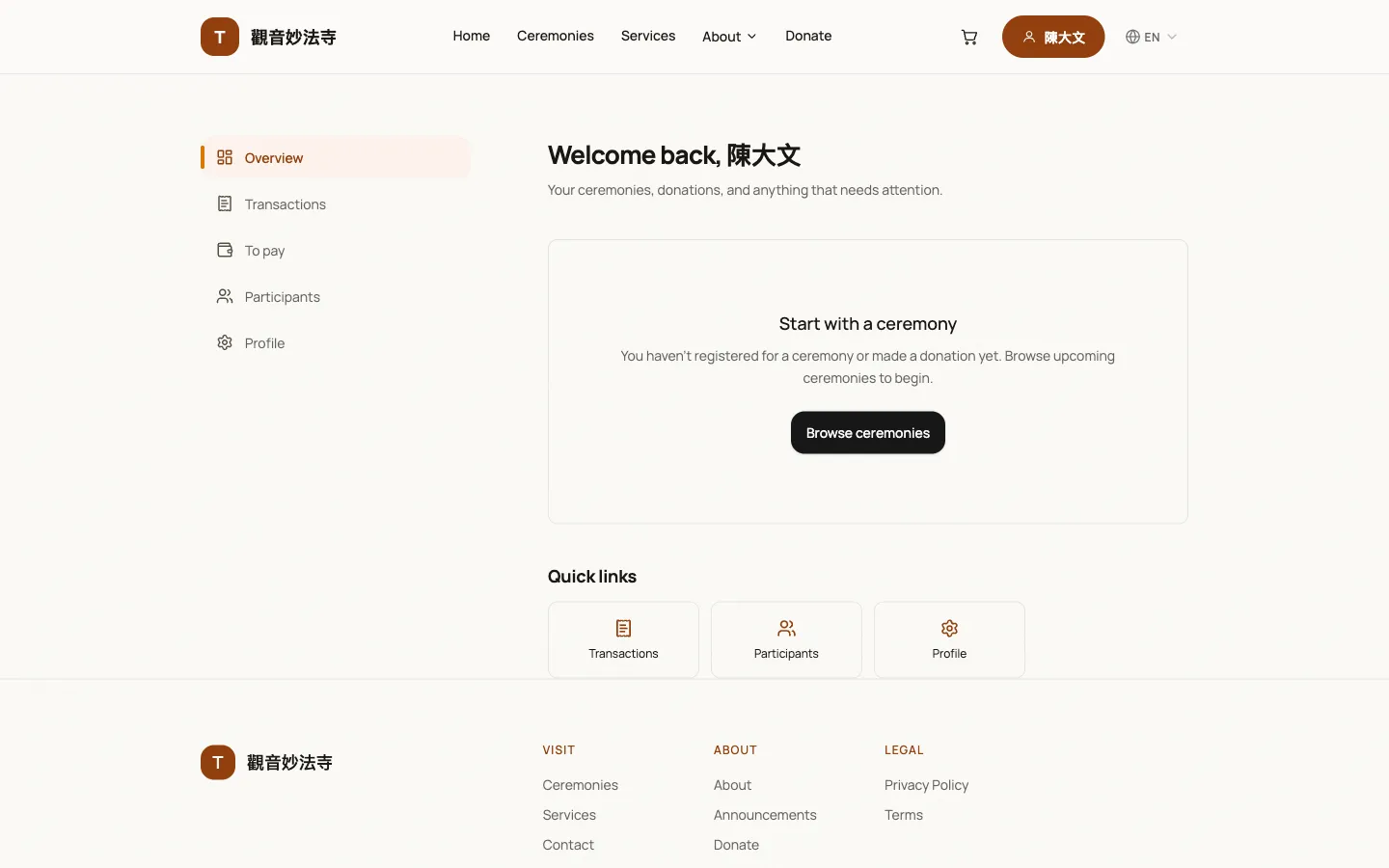
Log in and your member area
Signing in brings you to your member area. Five sections sit on the left: Overview, Transactions, To pay, Participants and Profile. Registrations, donations and receipts all live here.
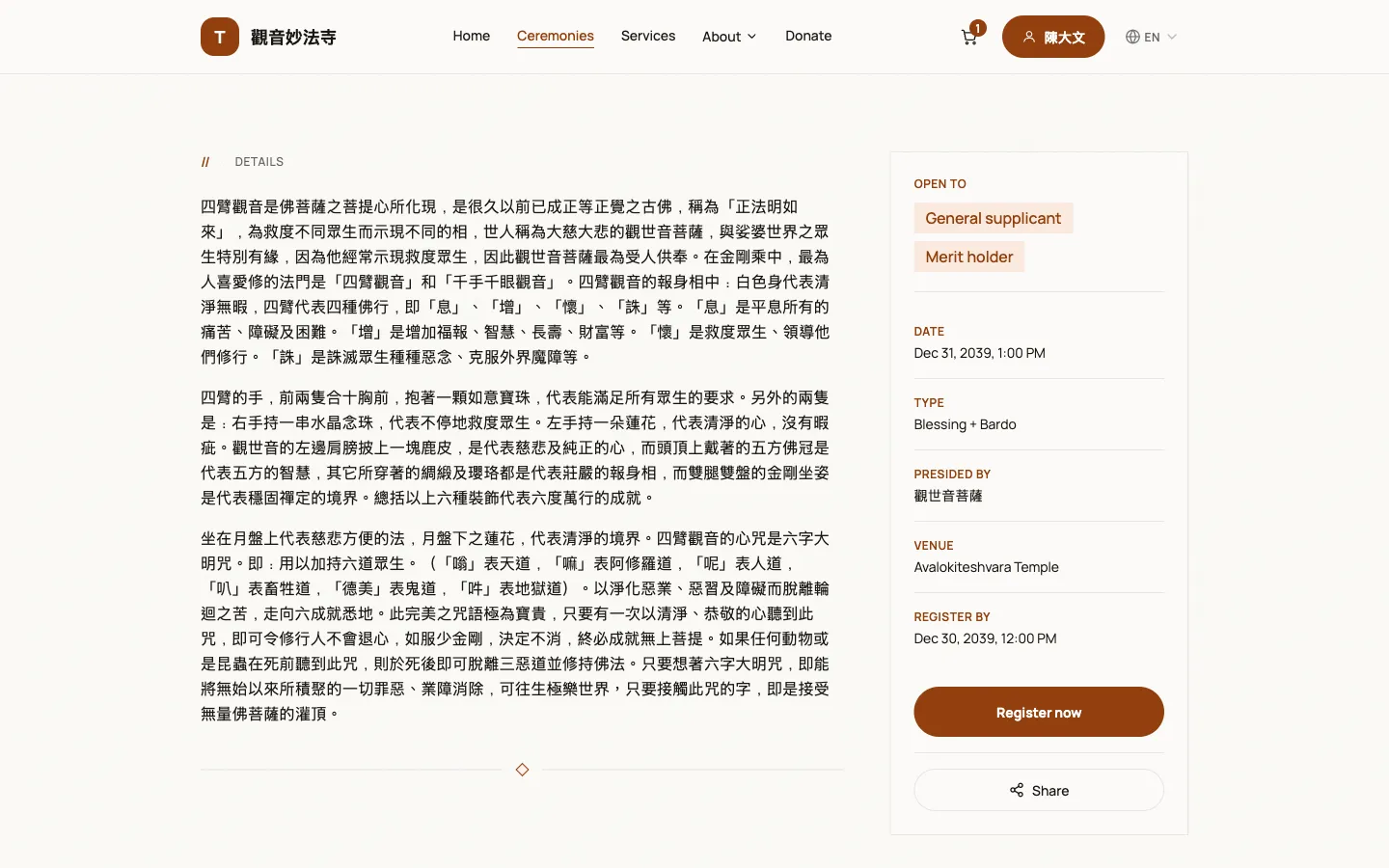
Choose a ceremony
Browse Ceremonies for dates, registration types and deadlines, then choose Register now to start a registration.
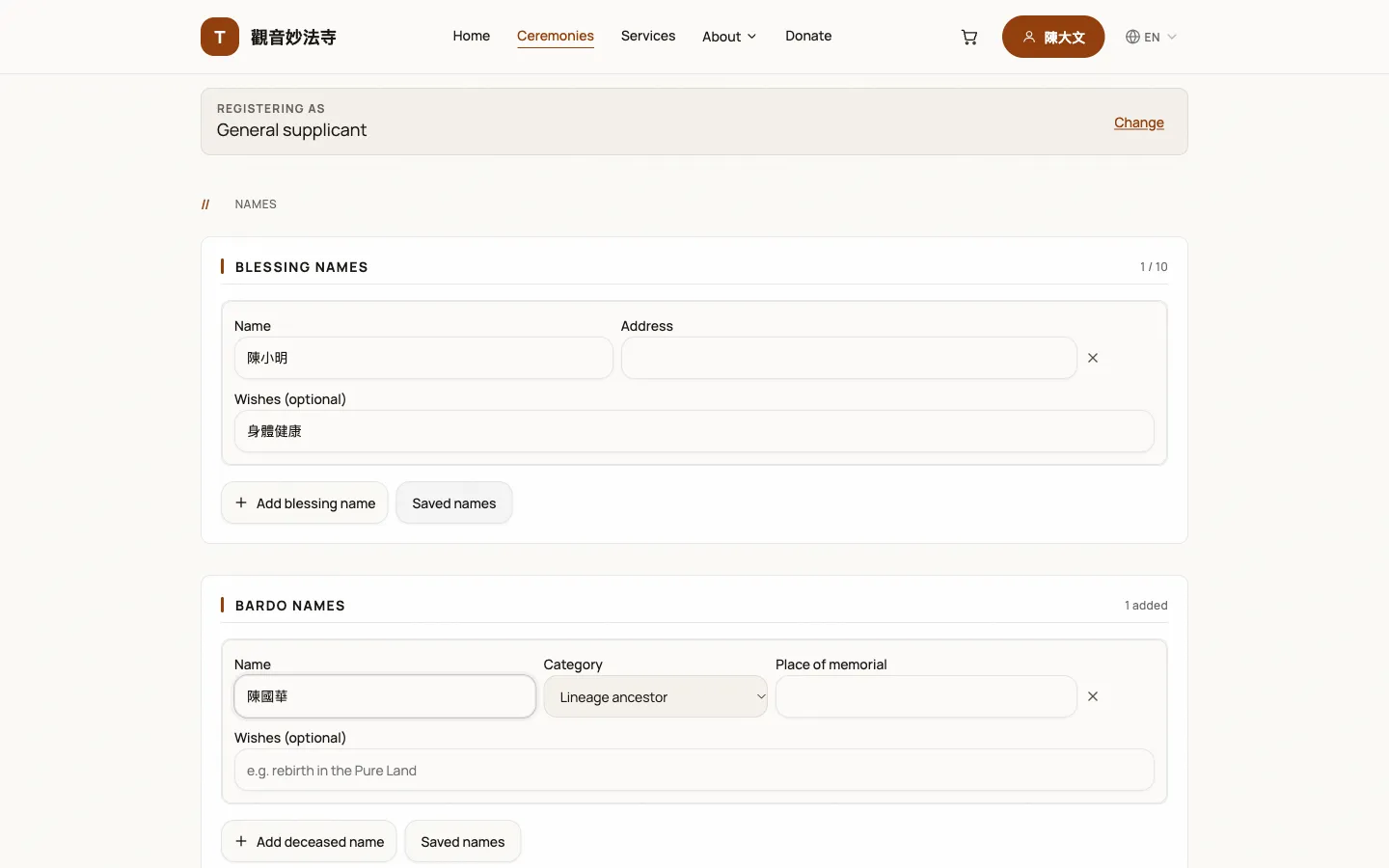
Fill in the names
Choose a registration type (general supplicant or merit holder), then fill in the blessing names and the bardo names. Saved names can be reused in one click.
Review and give
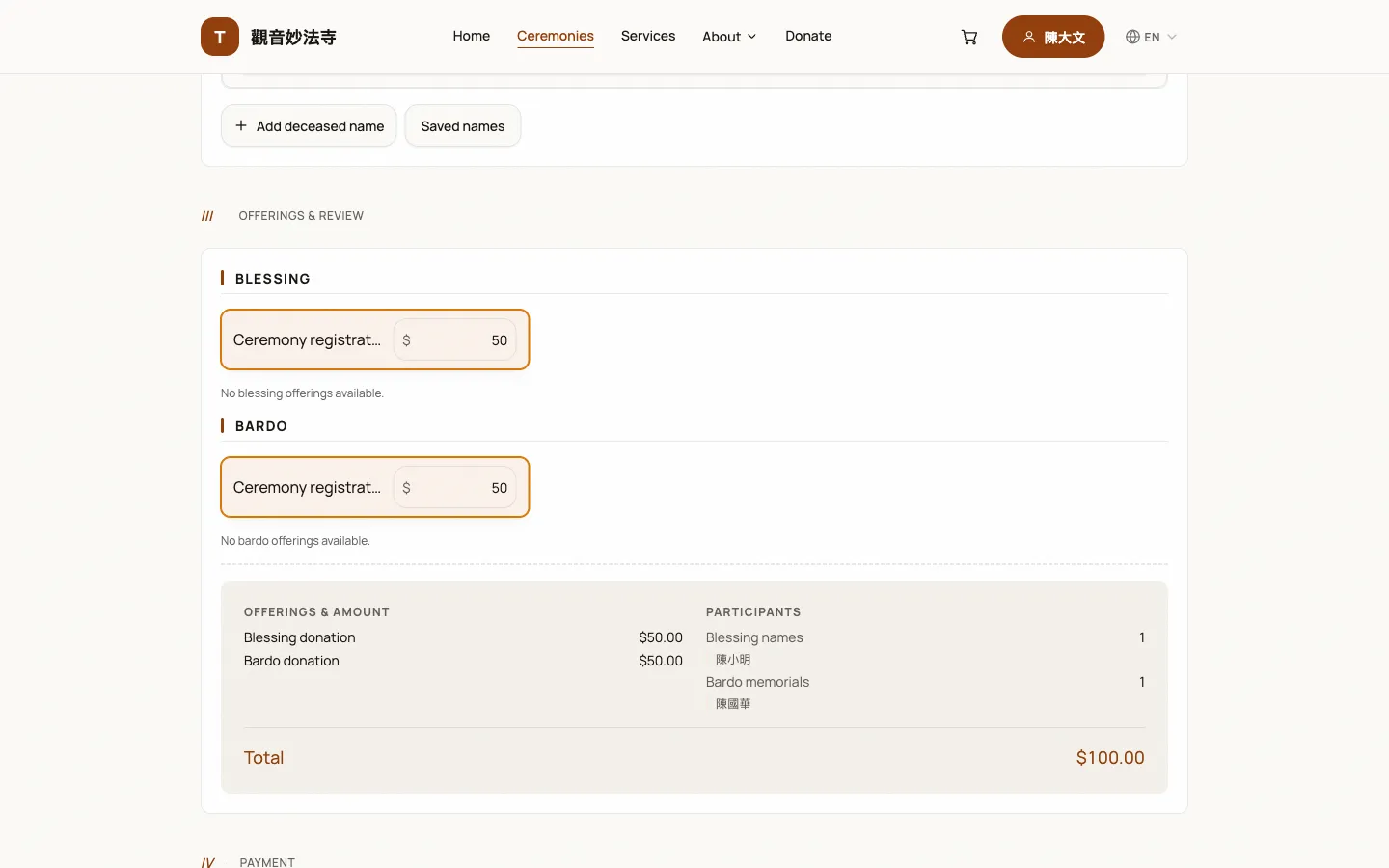
Check the offerings, the names and the donation amounts, then confirm the total and add the registration to your cart.
Pay
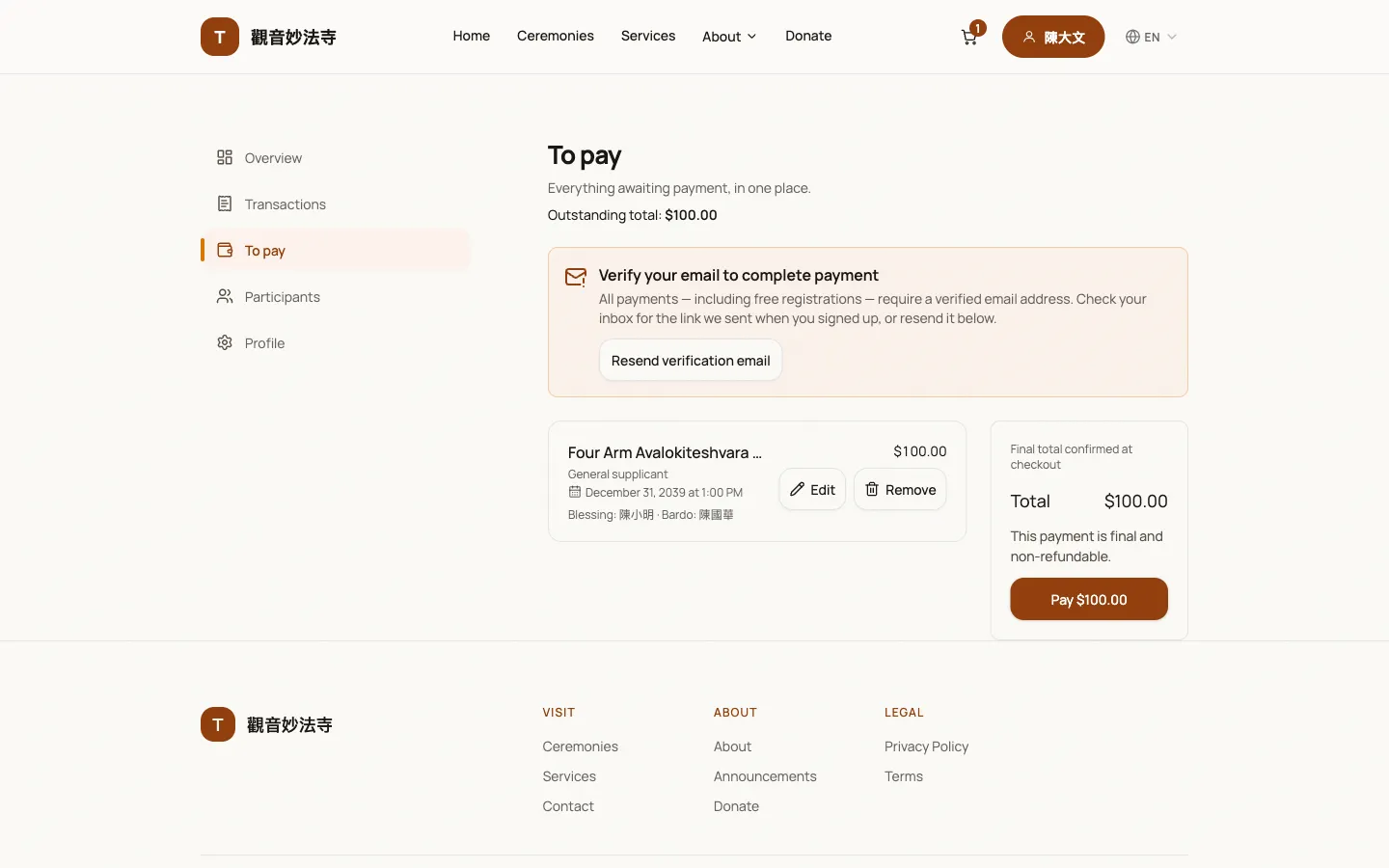
Settle everything in one go on To pay. Your email must be verified before paying; afterwards the registration is listed under Transactions and the receipt is emailed to you.
Try it yourself now
The demo site is open for free sign-up. Follow the steps above and you will see exactly these screens.